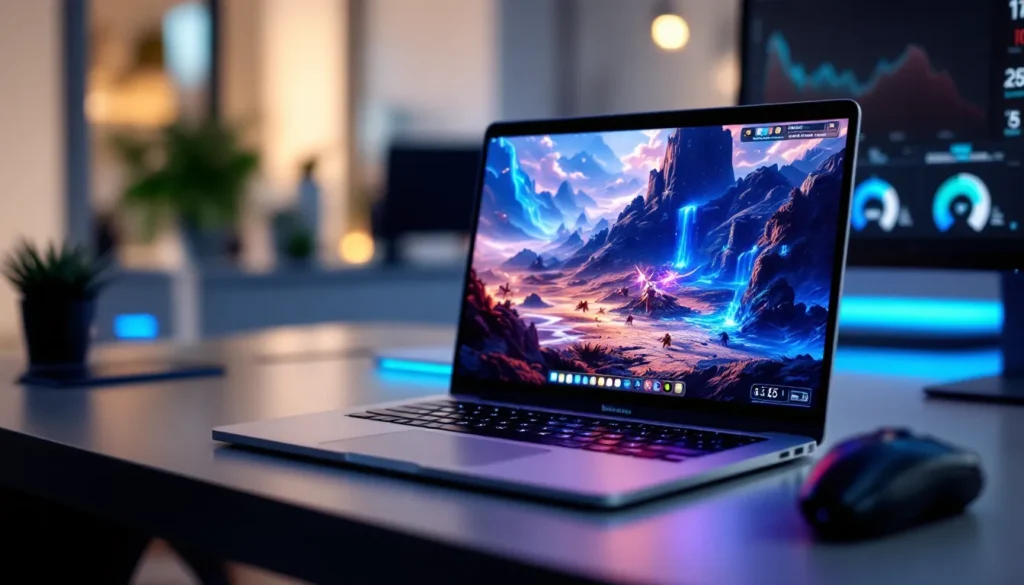
Mac users have historically faced a frustrating reality: many popular games simply don’t run natively on macOS. Genshin Impact, HoYoverse’s free-to-play action RPG with millions of players worldwide, is no exception. The official client won’t install directly on Mac, leaving players without a straightforward path into Teyvat. But here’s the good news, that doesn’t mean Mac players are locked out. Whether you’re running an M1, M2, M3, or Intel-based Mac, there are proven methods to play Genshin Impact on Mac in 2026, each with different trade-offs in performance and setup complexity. This guide walks you through every viable option, from virtualization to cloud gaming, so you can choose the approach that fits your hardware and expectations.
Table of Contents
ToggleKey Takeaways
- Mac users can play Genshin Impact through Parallels Desktop virtualization, cloud gaming, or Boot Camp on Intel Macs, with each method offering different trade-offs in performance and setup complexity.
- Parallels Desktop is the most popular method for playing Genshin Impact on Mac, achieving 50-60 FPS at 1080p medium settings on modern M-series and Intel Macs with 16GB RAM.
- GeForce Now cloud gaming works on any Mac with a stable internet connection, eliminating installation requirements and hardware limitations, though input latency may affect competitive gameplay.
- Genshin Impact’s anti-cheat system is compatible with Parallels Desktop and GeForce Now, so using these verified methods poses no ban risk to your account.
- Optimize performance by targeting 1080p resolution at medium-high settings, locking frame rates to 60 FPS, disabling ray tracing and shadows, and managing heat by closing background applications.
- Your progress in Genshin Impact syncs instantly across all platforms—Mac, PC, mobile, and beyond—making the choice of platform purely about convenience and performance preferences.
Why Mac Players Should Consider Playing Genshin Impact
Genshin Impact isn’t just another gacha game collecting dust on your phone. It’s a full-fledged action RPG with a 2000+ square meter open world, real-time combat, and production values that rival console titles. The game runs on a 6-week patch cycle with consistent story updates, limited-time events, and gameplay depth that keeps players invested for hundreds of hours.
For Mac users, the barrier to entry has always been technical, not because of the game’s quality. Players who invest in Genshin Impact get access to:
- A massive open world with exploration-based gameplay and environmental puzzles
- Fluid real-time combat that rewards positioning and character synergy
- A rotating roster of playable characters with unique abilities and aesthetics
- Cross-platform progression, so you can play on Mac, switch to mobile, and pick up exactly where you left off
- Regular content updates tied to a lore-driven story spanning multiple regions
Think of it this way: Genshin Impact on your Mac isn’t a compromise version of the mobile game. It’s the same game with better graphics, a larger display, and mouse/keyboard controls if you prefer them over a controller. Players who attempted to play Genshin Impact on Mac years ago faced stuttering, crashes, and poor frame rates. 2026 has brought new virtualization technology and cloud gaming infrastructure that makes the experience more stable than ever.
System Requirements For Running Genshin Impact On Mac
Before diving into installation methods, understanding what your Mac needs to run Genshin Impact is critical. The game’s official client targets Windows PCs, so Mac setup always involves a workaround, and workarounds have hardware minimums.
Checking Your Mac’s Compatibility
First, identify what you’re working with. Go to the Apple menu, select “About This Mac,” and note three things:
- Processor type: Does it say Apple Silicon (M1, M2, M3, M4) or Intel Core i5/i7/i9?
- RAM: Listed under “Memory”
- macOS version: Find this under “System Software”
Apple Silicon Macs (M-series chips) can’t run Windows natively, which eliminates certain methods like Boot Camp. Intel Macs have more flexibility but are aging out of Apple’s support cycle. Your processor type will determine which methods are viable for you.
Minimum Vs. Recommended Specifications
Genshin Impact’s official Windows minimum specs are:
- OS: Windows 7, 8, or 10 (64-bit)
- CPU: Intel Core i5 or equivalent
- RAM: 8GB
- GPU: GeForce GT 1030 or equivalent
- Storage: 30GB free space
Recommended specs for stable 60 FPS:
- OS: Windows 10 or 11 (64-bit)
- CPU: Intel Core i7 or newer
- RAM: 16GB
- GPU: GeForce RTX 2060 or equivalent
- Storage: SSD (at least 50GB available)
On Mac, these requirements don’t translate directly because you’re using virtualization or cloud gaming. Here’s what actually matters:
- Apple Silicon Macs: 16GB RAM minimum (Parallels Desktop overhead is substantial): M1 and newer can handle medium settings
- Intel Macs with 16GB+ RAM: Parallels Desktop or Boot Camp can run the game at 1080p medium settings
- Mac with 8GB RAM: Expect compromised performance: cloud gaming becomes more attractive
- macOS version: Monterey or newer recommended: older versions may struggle with virtualization stability
One critical detail: Genshin Impact’s anti-cheat system is sensitive to virtualization. Parallels Desktop is officially compatible, but other VM solutions may trigger false bans. Stick with verified methods.
Method 1: Using Parallels Desktop To Play Genshin Impact
Parallels Desktop is a virtualization software that runs Windows inside macOS. It’s the most popular method for playing Genshin Impact on Mac because it provides decent performance without hardware trade-offs, and it works on both Apple Silicon and Intel Macs.
Installation And Configuration Steps
Step 1: Purchase and install Parallels Desktop
Parallels Desktop isn’t free, expect to pay around $99 USD for a standard license or $119 USD for Pro. Student licenses and subscriptions are cheaper if you qualify. Download it from Parallels’ official website and follow their installer.
Step 2: Set up a Windows virtual machine
When you first launch Parallels, you’ll be prompted to install Windows. You have two routes:
- Windows 11 Pro (Microsoft’s official license, ~$200): Recommended for stability and anti-cheat compatibility
- Windows 11 Home: Cheaper but may have minor performance impacts
During setup, allocate resources carefully:
- vCPU cores: Assign 4-6 cores (leave at least 2 for macOS)
- RAM: Give Windows 8-12GB depending on your Mac’s total RAM
- Graphics: Enable 3D acceleration: Parallels will handle GPU delegation
- Storage: Create a 100GB+ virtual disk (SSD-backed preferred)
Step 3: Download and install Genshin Impact
Once Windows is running in Parallels:
- Open a browser inside the virtual machine and go to the official Genshin Impact launcher site
- Download the official launcher (not third-party alternatives)
- Run the installer and follow prompts: the game will download an additional 30GB of assets
- This can take 2-4 hours depending on internet speed
Step 4: Launch and test
Start the game from the launcher. You’ll see the login screen. Log in with your HoYoverse account (same one you use on mobile or any other platform). Your progress syncs instantly across all devices.
Performance Optimization Tips
Right out of the box, Parallels’ default settings often result in 30-50 FPS on high-end Macs. Here’s how to push closer to 60 FPS:
In Parallels settings:
- Enable “Coherence mode” (seamless window integration, less overhead)
- Boost graphics memory to maximum
- Enable 3D acceleration and optimize VM performance under Preferences > CPU & Memory
- Disable unnecessary background processes in Windows (bloatware from the OS install)
In Genshin Impact settings:
- Target 1080p at medium-to-high settings first: test frame rate stability
- Enable V-Sync to prevent screen tearing
- Set “Frame Rate” to 60 FPS (don’t chase 120 FPS: it’ll stutter)
- Disable ray tracing and shadows at maximum quality: these tank performance in virtualization
- Turn off ambient occlusion if you see stuttering during exploration
Hardware considerations:
- Close other Mac applications while playing: virtualization is resource-hungry
- Ensure your Mac isn’t throttling from heat: play in a cool environment
- Use an external cooling pad under your Mac if sessions last 2+ hours
- Plug in your Mac: battery mode reduces CPU performance dramatically
M1/M2 Macs with 16GB RAM can achieve 50-60 FPS at 1080p medium settings. Intel i7 Macs from 2017+ can do similar or better. Older hardware will need lower settings or accept 30-40 FPS.
Method 2: CloudPlay And Cloud Gaming Services
Cloud gaming streams Genshin Impact from a remote server to your Mac. You’re not running the game locally: you’re watching video of it running elsewhere and sending input commands. This bypasses hardware limitations entirely.
GeForce Now And Other Cloud Options
NVIDIA GeForce Now is the leading cloud gaming service for Genshin Impact on Mac:
- Cost: Free tier (1-hour sessions, queues): $9.99/month for RTX membership (unlimited sessions, priority access)
- Performance: 1080p 60 FPS is standard: 4K available on high-speed connections
- Compatibility: Works on Mac, iPad, iPhone, PC, and browser
- Setup: Create account, authenticate your HoYoverse account, launch Genshin Impact from their library
The free tier lets you test cloud gaming before paying. RTX membership unlocks unlimited playtime and DLSS 3 upscaling, which improves visual quality at higher framerates.
Other cloud gaming alternatives:
- Xbox Game Pass Ultimate: Includes cloud gaming, but Genshin Impact isn’t on Xbox: not relevant for this game
- PlayStation Plus Premium: Same issue: Genshin Impact is exclusive to mobile and Windows
- Amazon Luna: Doesn’t currently support Genshin Impact
- Mac-specific services: None offer Genshin Impact natively
For Mac players, GeForce Now is the only practical cloud gaming option for Genshin Impact. The service has been reliable since 2020, and HoYoverse officially supports it, no ban risk.
Pros And Cons Of Cloud Gaming
Pros:
- No installation: Download nothing: click play and you’re in Teyvat in 10 seconds
- Works on any Mac: Even a 2010 MacBook Air can stream Genshin Impact at full quality
- No hardware limits: Play at maximum graphics regardless of your Mac’s specs
- Instant updates: Patches are on the remote server: your Mac is always up-to-date
- Cross-device seamless: Play on your Mac in the morning, iPad at lunch, phone on the commute
Cons:
- Internet dependency: Requires stable 25+ Mbps connection: WiFi lag causes input delay
- Input latency: Noticeable delay between controller input and on-screen response (50-150ms): fine for exploration, problematic for frame-perfect platforming or competitive dungeons
- Data usage: Continuous streaming uses 2-5GB per hour: problematic on capped connections
- Quality varies: Server congestion or ISP throttling can degrade video quality mid-session
- Recurring cost: $120/year for RTX membership adds up
Cloud gaming excels for casual play and exploration. For endgame spiral abyss or time-sensitive events, the input lag feels sluggish. Players with symmetrical 100+ Mbps fiber connections barely notice latency: those on cable or DSL will feel it.
Method 3: Boot Camp For Intel-Based Macs
Boot Camp is Apple’s native dual-boot utility that lets Intel Macs partition the drive and run Windows natively (not virtualized). It’s the fastest way to play Genshin Impact on Intel hardware.
Caveat: Boot Camp is exclusive to Intel Macs. Apple Silicon users can skip this section entirely.
Setup overview:
- Open Boot Camp Assistant (Applications > Utilities)
- Partition your drive (allocate 100GB+ to Windows)
- Download Windows 10 or 11 ISO
- Boot Camp handles the rest: partitioning, bootloader setup, driver installation
- Restart and choose Windows at startup
- Install Genshin Impact normally
Boot Camp gives you native Windows performance without virtualization overhead. On an Intel i7 Mac with 16GB RAM, you’ll get 60+ FPS at 1080p high settings, sometimes even higher. This is objectively the best performance option for Intel users.
Drawbacks:
- Requires Intel Mac: Useless for M1/M2/M3 owners
- Manual switching: You must restart your Mac to switch between macOS and Windows: can’t run both simultaneously
- Disk space: Partitioning requires planning: resizing partitions later is risky
- Maintenance burden: Windows needs updates, antivirus, cleanup over time
- Limited official support: Apple hasn’t updated Boot Camp drivers since 2021: newer Windows versions may have compatibility quirks
Is Boot Camp Still Relevant For Modern Mac Users
In 2026, Boot Camp is a legacy solution. Here’s why it’s fading:
The case against Boot Camp:
- Intel Macs are aging hardware: most sold before 2018 are no longer supported by current Windows updates
- Apple shifted to Apple Silicon in 2021: new Mac purchases can’t use Boot Camp at all
- Virtualization tools like Parallels have caught up in performance: the gap is now 10-20 FPS, not 50%
- Boot Camp requires full Windows licensing (one-time cost), whereas Parallels includes Windows licenses
When Boot Camp still makes sense:
- You own a 2015-2020 Intel Mac and want the absolute highest frame rates
- You’re willing to deal with manual restarts for the performance gain
- You already have Windows installed and don’t want another OS copy eating disk space
For players buying new Macs in 2026, Boot Camp is irrelevant. For existing Intel Mac owners, it’s a valid option if performance is critical, but Parallels is more practical for most people.
Troubleshooting Common Installation Issues On Mac
Even with clear steps, things go wrong. Here are the most common Mac-specific issues and how to fix them.
Parallels refuses to download Windows
This usually means your internet connection dropped during the 5-10GB transfer. Click “Retry” in Parallels. If it keeps failing:
- Check macOS firewall settings (System Settings > Network > Firewall)
- Try downloading Windows ISO manually from Microsoft, then manually selecting it in Parallels
- Ensure you have 200GB free disk space (Parallels needs overhead room)
Game launcher hangs on “Updating” or “Checking Files”
The launcher’s integrity check fails in virtualization sometimes. Fix:
- Close the launcher completely
- Inside the Windows virtual machine, delete the Genshin Impact folder entirely
- Redownload and reinstall from scratch
- This takes 1-2 hours but usually resolves the issue
Alternatively, cloud gaming services like GeForce Now skip launcher problems entirely since the remote server handles everything.
Game crashes immediately on startup
This often means graphics acceleration is disabled or unsupported. Fix:
- In Parallels Preferences, go to Graphics
- Ensure “3D Acceleration” is enabled
- Boost “Graphics Memory” to maximum
- Restart Windows
Anti-cheat detected virtualization: account flagged
This is rare with Parallels but devastating if it happens. Genshin Impact’s anti-cheat is strict. Prevention:
- Use only Parallels Desktop (versions 16+): other VM software has higher ban risk
- Keep Windows fully updated
- Don’t use mods, overlays, or third-party tools that interfere with game memory
- If falsely flagged, contact HoYoverse support immediately with Parallels proof, they’re aware of the tool and can usually lift bans
Mac gets extremely hot: game stutters
Virtualization maxes out CPU usage. Fix:
- Close other applications: even Chrome eating RAM causes stuttering
- Reduce in-game graphics settings (lower resolution to 1600×900 if needed)
- Lower Parallels’ CPU allocation by 1-2 cores (keep at least 4)
- Ensure your Mac’s vents aren’t blocked: clean them if dusty
- Use external cooling solutions for long sessions
Heat damage is cumulative. Don’t ignore thermal throttling: your Mac’s lifespan matters more than 10 extra FPS.
Parallels or boot camp installation requires admin password repeatedly
This is a permissions issue. Fix:
- Open System Preferences > Security & Privacy
- Click the lock icon and authenticate
- Ensure your user account is listed under “Allow apps downloaded from” section
- Restart your Mac
For persistent issues with virtualization setup, general gaming setup tutorials provide OS-level troubleshooting that applies beyond just Genshin Impact.
Graphics And Performance Optimization
Once the game is running, optimization separates smooth, enjoyable sessions from frustrating stuttering. Genshin Impact scales remarkably well, you can get playable framerates on modest hardware if you tune it right.
Best Settings For Smooth Gameplay
In-game settings are found under Options > Graphics. Here’s a priority list for Mac players:
Tier 1 (highest impact on FPS):
- Resolution: Start at 1920×1080 (1080p). If you’re getting <45 FPS, drop to 1600×900. If you’re stable at 60+ FPS, consider 2560×1440 (1440p) depending on your monitor
- Frame Rate Limit: Lock to 60 FPS (Vsync on). Don’t chase 120 FPS on Mac: it creates inconsistent frame times
- Rendering Quality: Medium is the sweet spot. High looks similar but tanks FPS
Tier 2 (moderate impact):
- Shadows: Medium or Low. Maximum shadows are expensive: you won’t notice much visual difference at Medium
- Effects: Medium. High effects (particle density, spell explosions) cause frame dips in combat
- Reflection: Medium. Low reflections still look good and save 10-15 FPS
- Motion Blur: Disable entirely. It looks nice in trailers but creates perceived stuttering in fast movement
Tier 3 (visual, minimal FPS impact):
- Bloom: Disable if you have a gloss preference: it’s purely aesthetic
- Ambient Occlusion: Disable. Subtle shadows that barely affect visuals but do affect performance
- Volumetric Fog: Medium or Low: minimal impact but can help in exploration scenes
Recommended profiles:
Apple Silicon Mac (M1/M2/M3) with 16GB RAM:
- 1920×1080, rendering quality High, shadows Medium, effects Medium, everything else Medium-Low
- Expected: 55-60 FPS consistently
Intel i7 Mac (2017+) with 16GB RAM:
- 2560×1440, rendering quality High, shadows High, effects Medium, everything else Medium
- Expected: 55-60 FPS: occasionally dips to 50 FPS in complex areas
8GB RAM Mac (any processor):
- 1600×900, rendering quality Medium, shadows Low, effects Low
- Expected: 35-45 FPS: not ideal but playable for exploration
For cloud gaming (GeForce Now), settings don’t matter on your Mac, the remote server handles them. You can max everything and play at 1080p 60 FPS or 4K 30 FPS depending on your internet.
Managing Resource Usage And Heat
Virtualization and gaming are CPU-intensive. Your Mac will get hot. Smart thermal management keeps your system stable and extends hardware lifespan.
During gameplay:
- Monitor CPU usage: Open Activity Monitor (Applications > Utilities) in the background. If CPU is >90% consistently, you’re thermally limited
- Close background apps: Each open application (web browser, music app, etc.) steals CPU cycles. Even Chrome with 10 tabs eats 15-20% CPU
- Check Mac temperature: Use free apps like Macs Fan Control or Coconut Battery to see real-time temps. Warn threshold is 90°C: critical is 100°C+
- Adjust fan speed: If temps exceed 85°C, manually boost fans in Macs Fan Control (aggressive, but safer than throttling)
- Ensure adequate ventilation: Don’t play with your Mac on soft surfaces (beds, pillows). Use hard, flat surfaces: air circulation matters
Long-term thermal care:
- Every 6 months, use compressed air to clean Mac vents (externally: don’t open the device unless you’re comfortable with hardware)
- Avoid playing in hot environments (direct sunlight, near heaters)
- Don’t cover air vents with your hands during play
- Consider an external cooling pad ($20-40) for sustained gaming: properly cooled systems last 2+ years longer
- Take 15-minute breaks every 2 hours to let your Mac cool
RAM management:
Genshin Impact uses 2-3GB of RAM in-game. On 8GB Macs, you’ll be tight. On 16GB+ Macs, you’re fine. If you’re near the 8GB limit:
- Don’t run Chrome while playing: Safari is lighter
- Close Slack, Discord, and other background apps
- Disable system visual effects (System Preferences > Accessibility > Display > Reduce motion)
Power settings:
Even plugged in, Macs reduce performance in certain power modes. Fix:
- System Settings > Battery
- Set “Low Power Mode” to Off while gaming
- Plug in your Mac: battery mode cuts CPU performance by 30%
These small tweaks add up. A Mac that starts at 45 FPS can hit 60 FPS steady with proper optimization.
Conclusion
Playing Genshin Impact on Mac in 2026 isn’t a compromised experience, it’s a matter of choosing the right method for your hardware and tolerance for setup complexity. Parallels Desktop offers the best balance of performance and ease for most users, with stable 50-60 FPS on modern Macs and straightforward installation. Cloud gaming via GeForce Now is unbeatable for accessibility: zero installation, works on any Mac, and maximum graphics at the cost of internet latency. Intel Mac owners still have Boot Camp for native performance, though it’s increasingly niche.
The common thread across all methods is that HoYoverse supports them. You won’t get banned for using Parallels, GeForce Now, or Boot Camp. Your account progress syncs instantly across every platform, Mac, PC, mobile, and beyond. That’s the real advantage of Genshin Impact: once you’re in, the platform becomes irrelevant.
Your next step depends on your situation. If you own a recent Mac with solid specs, start with a Parallels Desktop trial (7-day free trial available). If you want zero installation hassle or older hardware, try GeForce Now’s free tier first. Both will get you into Teyvat. The rest is grinding materials, building characters, and joining the millions of players exploring one of gaming’s most polished open worlds on Mac.